The Imaging System window provides the following additional preferences for both encoder and “go to” interfaces.
When this option is turned on, after initiating a slew command (page 403), you must confirm whether you want to slew the telescope before the mount begins slewing.
Turn off the Always Confirm Slews option on the Confirm Slew window or on the Telescope Setup window so that confirmation is not required.
When this option is turned on, after initiating a software synchronization (page 398), you must confirm whether you want to sync the telescope.
Turn off the Always Confirm Slews option on the Confirm Slew window or on the Telescope Setup window so that confirmation is not required.
When this option is turned on, after adding a new pointing sample, you must confirm whether you want to do so.
Turn off the Always Confirm Pointing Samples option on the Confirm Pointing Sample window or on the Telescope Setup window so that confirmation is not required.
Turn this option on to have TheSky try to stop slews to slew limit regions (page 379).
***
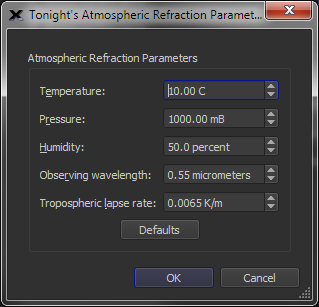
Click the Atmospheric Refraction Parameters button to set the temperature, pressure and other weather-related parameters that can change telescope pointing (specifically, refraction calculations) from night to night. Note that these parameters can usually be left unchanged for most observers. For those using the TPoint module’s Super Model feature to achieve sub-10 arcsecond pointing, setting these parameters each night will help maintain superb pointing.
Figure 168: Tonight's Atmospheric Refraction Parameters window.
Enter tonight’s ambient temperature.
Enter the barometric pressure, in mB. Note that the pressure TPoint needs is the absolute pressure at the observatory site (QFE), not the equivalent sea-level pressure (QNH). Websites and weather stations almost always give the latter, always around 1000 hPa, whereas the pressure at Golden, Colorado (for example) is about 820 hPa. If you mistakenly use the sea-level pressure, you are likely to find the term TX10 appearing in your pointing model to correct the overestimate, not that it always means that.
Enter the relative humidity, as a percentage.
Enter the wavelength of light that is being observed. Yes, the atmosphere affects different wavelengths.
In degrees K/m, the default value is 0.01. Note that the default value can be used in nearly all circumstances.
Click this button to restore the default atmospheric refraction settings.
***
Enter the length of time, in milliseconds, between requests to update the coordinates of the telescope crosshairs. The default setting is As Fast As Possible; if you cannot establish communication with your mount, or encounter communication failures, it may be that your mount cannot keep up with TheSky’s requests. If this is the case, try increasing the interval to 500 milliseconds or higher.
The telescope crosshairs can be forced to remain visible on the Sky Chart so that you can more easily track its position. The other options in this list include:
· No: This option allows the telescope crosshairs to move independently from the Sky Chart. Use the Center Crosshairs button to adjust position of the Sky Chart based on the telescope’s current position.
· Yes: The telescope crosshairs remain visible on the Sky Chart. If the telescope is slewed, or the Sky Chart’s position is changed, the Sky Chart is automatically updated to center the crosshairs.
· Yes, Centered: The telescope crosshairs are pinned to the center of the Sky Chart.
· No, Suspend Connection: The telescope link is suspended; the telescope crosshairs are no longer displayed, and Sky Chart’s field of view can be changed.
Click the Choose button to choose the Field of View Indicator (page 125) for your imaging system.
The crosshairs in the Sky Chart will now “follow” the telescope. This is true whether you move the telescope by hand or let its motor drive turn it. Be sure you’ve clicked the Computer Clock button. The Sky Chart will then update automatically. If you select a specific date and time, the Sky Chart does not update; however, the Sky Chart may not match what you see through the telescope.
On the Telescope menu, click the Connect command. Or select Disconnect Telescope in the Shut Down pop-up menu on the Telescope window.
TheSky can help you position the telescope on an object.
1. Use the Find command on the Edit menu to locate the object.
2. Click the Guide To Current Object button. It is located on the Utilities tab of the SGT Alignment window. This will show the Guide To controls on the Sky Chart. When the telescope is pointing relatively near the target object, its position is represented by crosshairs on the RA/Azimuth and Dec/Altitude axis circles. When an axis is far from the object, a red and green line are shown instead. The red line rotates as the telescope is moved. The green line remains stationary. Your goal is to move the telescope until the red line is drawn on top of the green line. At this point, the lines fade away. Slowing move the telescope axis until the crosshair is over the center green circle.
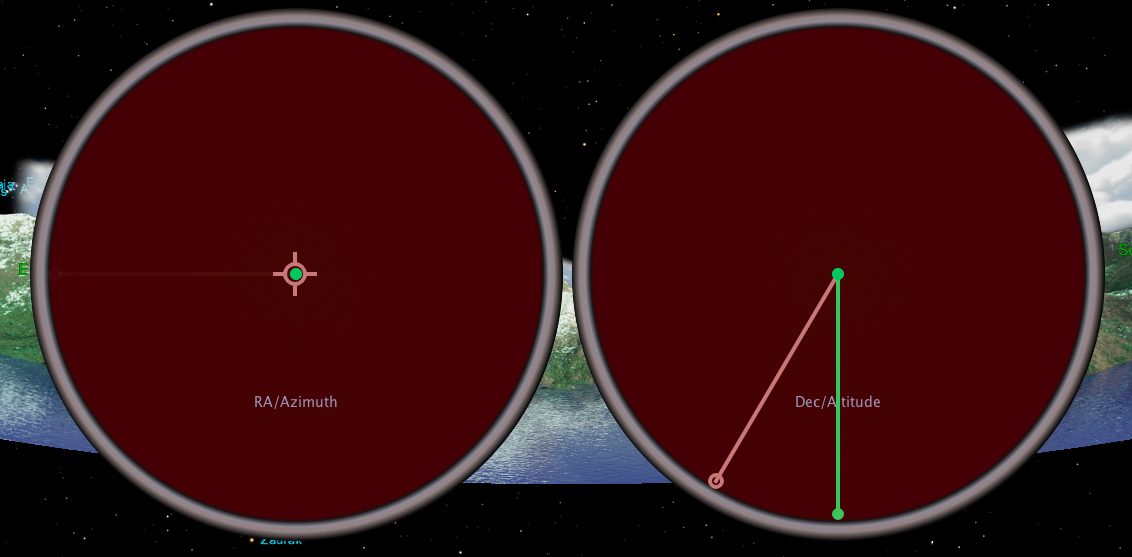
Figure 169: The SGT Guide To controls.
3. Starting with the RA/Az axis, move the telescope until the crosshairs are centered in the circle. Lock the RA/Az axis.
Repeat the last step for the Dec/Alt axis.
The Sky Chart’s crosshairs are now over the desired object. When you look through the telescope, the object should be near the center of the field. If Impose Slew Limits are enabled, TheSky warns you if you try to move the telescope into a limit-line region.