
Mankind has been using calendars of one kind or another to mark the passage of time for thousands of years. TheSky’s Calendar charts the phases of the Moon, sunrise, and sunset, and viewing opportunities for a special kind of satellite event called an Iridium flare, monthly. You can display and print a calendar for a single month or the entire year.
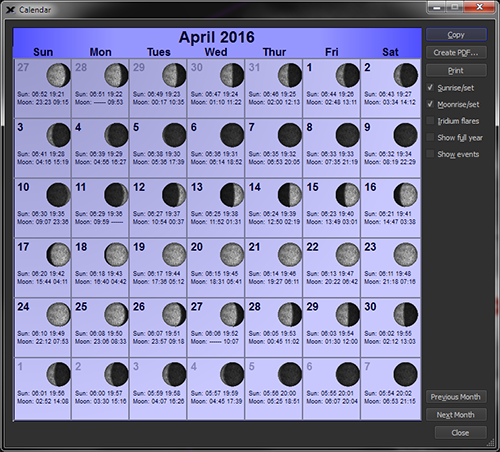
Figure 67: The Calendar window (Calendar command, Tools menu).
The current month’s calendar can be exported by copying it to the Clipboard using the Copy button, and then pasted into other applications that accept graphics (in Portable Network Graphics or PNG format).
Please include the Software Bisque copyright if you publish a calendar on the web or in a monthly astronomy bulletin.
Calendars created as Portable Document Format (PDF) documents can be emailed and viewed, or printed using free software on Windows, or freely with the Preview application on macOS.
PDF calendars, by default, are saved to the directory named:
Software Bisque/TheSkyX <Edition Name Here>/Exported Data
In your home folder (the one with the house icon in Finder on macOS or the current user’s My Documents folder on Windows).
Clicking the Print button sends the calendar to your printer. Make sure that your printer is turned on and ready to go before doing so.
Turn on the Sunrise/set or Moonrise/set checkbox to show the local sunrise (moonrise) and sunset (moonset) times for each day on the calendar.
To show the predicted times for flares in the calendar, TheSky must first generate an Iridium flare report. To do so, click the Iridium Flares command on the Tools menu, specify the desired search parameters, then click the Find Flares button to generate a report of upcoming flares.
After an Iridium flare report is generated, turning on the Iridium Flares checkbox on the Calendar window shows the magnitude, time, direction, and altitude of each flare in the Iridium flare report.
Turn on the Show Full Year checkbox to view the phases of the Moon for the current year.
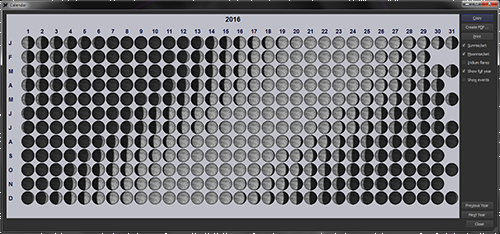
Figure 68: Phases of the Moon for one year.
When the Show Full Year checkbox is off, click the Next or Previous Month button to view a future or past month’s calendar.
If you select the Date & Time tab, a small calendar for the current month will be displayed. Here’s a very interesting feature: if you click on any date in the calendar, the Sky Chart automatically shifts to show you what the sky will look like on that date, for the current time. Notice also that the four major phases of the Moon are displayed in the calendar.
For a more detailed calendar, go to the Tools item in the Main Menu. Scroll down to Calendar and select it. A larger, printable calendar is displayed. Note that you can select various kinds of information to be included in the calendar by checking the appropriate boxes on the right-hand side of the window.