TheSky Gamepad Integration
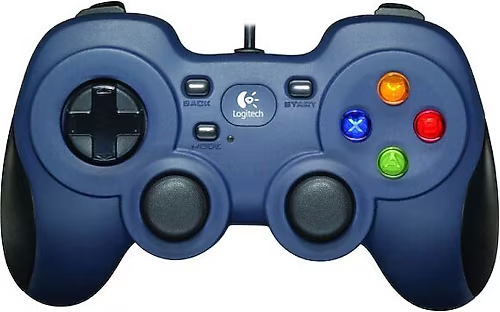
Slew/center/tweak your telescope position — or fly the star chart like a spaceship — with an ordinary gamepad (Xbox, PlayStation, 8BitDo, or any XInput pad).
**Important — For a responsive gamepad, TheSky’s chart frame rate must be fast (it is fast by default). If you’ve set your target frame rate to 1 (fps), this won’t work — the chart can’t keep up and the response feels laggy.
Opening it
Exit TheSky. Create the folder named “EnableGamePad” under the same folder where TheSkyX.exe resides.
Start TheSky. Go to Gamepad docked window. It has two tabs:
- Mount Joystick — move the mount.
- Star Chart Joystick — pan / zoom / rotate (in free rotation orientation only) the TheSky’s star chart.
Each tab connects its own gamepad independently. To use both tabs at once, plug in two gamepads; with one gamepad, you can only connect one tab.
Connecting a Gamepad
Each tab has the same small header:
- ⟳ (Refresh) — re-check which gamepads are plugged in.
- Connect — start using a gamepad. If more than one is plugged in, you’ll pick from a list.
- Disconnect — stop (also stops any mount motion).
- Status — shows “Connected:
” or why it can’t connect. - Exercise… — opens a tester that lights up every button/stick, so you can confirm the gamepad works.
The title line reports what’s found: Gamepad detected, Multiple gamepads detected, Gamepad in use by another tab (it’s driving the other tab — use a second gamepad), or No gamepad detected.
Mount tab: Connect first requires the mount to be connected in TheSky — the gamepad never connects the mount for you. If the mount (or TheSky) isn’t ready you’ll see Mount not connected… / TheSky not reachable….
Mount Joystick — controls
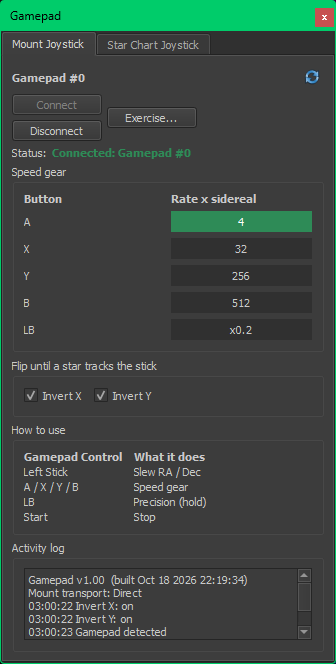
| Gamepad Control | What it does |
|---|---|
| Left stick | Slew the mount. How far you push = how fast (push a little for fine, a lot for fast). |
| A / X / Y / B | Pick a speed gear — Guide, Slow, Medium, Slew. The table shows each gear’s rate (× sidereal). Starts in the slowest for safety. |
| LB (hold) | Precision — temporarily slows everything down (×0.2) for fine centering. |
| Start | Stop all motion. |
| Center the stick | Resume normal (sidereal) tracking. |
| Invert X / Invert Y | Flip stick direction so a star moves the way you push — see below. |
“Star follows stick”: which way the sky moves for a given push depends on where the mount is pointing and how your camera is rotated. Toggle Invert X and/or Invert Y until a star on screen tracks the direction you push the stick for your setup. These are remembered.
The gear speeds are configurable (and remembered) — see Changing the speed-gear rates below if you want different rates.
Star Chart Joystick — controls
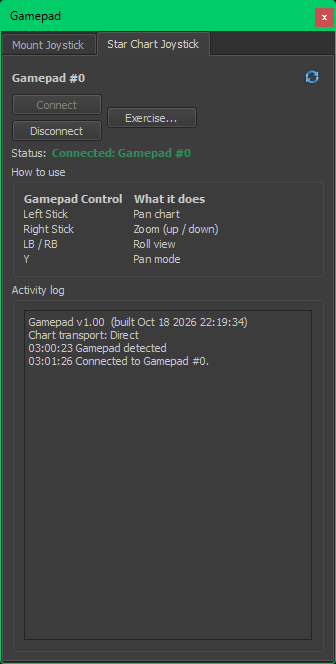
| Gamepad Control | What it does |
|---|---|
| Left stick | Pan the chart. The amount scales with zoom, so it feels the same whether zoomed in or out. |
| Right stick (up / down) | Zoom in / out. |
| LB / RB | Roll (rotate) the view — only when the chart is in Free Rotation. |
| Y | Switch how panning works: RA/Dec-locked (stick-up always moves north) or screen-relative (stick-up always moves up on screen, even when rolled). |
Panning follows the chart’s orientation automatically: in a horizon (Terrestrial) orientation the stick moves in azimuth/altitude; otherwise in RA/Dec. The Star Chart tab needs TheSky running.
About button labels
The labels A / X / Y / B and LB / RB are the Xbox names. On a PlayStation pad the shoulder buttons are L1 / R1 and the face buttons are symbols (✕ ○ □ △); Nintendo swaps A/B. The positions are the same — hover any row in the on-screen “How to use” table for a tooltip.
Troubleshooting
- “No gamepad detected” — plug the gamepad in, then press Refresh (or Connect). On a wireless pad, make sure it’s paired/awake.
- “Gamepad in use by another tab” — that gamepad is already driving the other tab. Use a second gamepad, or Disconnect it there first.
- “Mount not connected in TheSky” — connect the mount on its own tab in TheSky first; the gamepad won’t connect it for you.
- “TheSky not reachable” (Star Chart) — make sure TheSky is running.
- Nothing moves — check the Status line says Connected, and that you’re on the right tab; press Start then re-center the stick if motion got stuck.
- Gamepad works but mount drifts the wrong way — use Invert X / Y.
- Verify the gamepad — Exercise… shows every control live.
Supported gamepads
Any gamepad that presents a standard layout works — Xbox, PlayStation DualShock/DualSense, Nintendo Switch Pro, 8BitDo, Logitech F310/F710, and generic XInput pads. Only the printed labels differ; the roles are by position.
Logitech F310 / F710: these use the Xbox-style A / B / X / Y and LB / RB labels, so everything in this guide matches the labels on the pad. Make sure the X / D switch on the back is set to X (XInput) — in D (DirectInput) mode the buttons map differently or may not be detected. If the pad isn’t detected or buttons seem wrong, check that switch first, then Refresh.
Changing the speed-gear rates
The four speed gears A / X / Y / B default to 4, 32, 256, 1000 × sidereal. To change them:
- Exit TheSky.
- Open
AppSettings.iniin a text editor. - Find the line for
APP_qsGamepadSettings— its value looks likespeeds=4,32,256,1000;invX=0;invY=1. - Edit the comma-separated speeds after
speeds=. They are the rates (× sidereal) for A, X, Y, B, in that order. (invX/invYare the Invert-X / Invert-Y toggles — 0 or 1.) - Save and restart TheSky.